The Pilots button
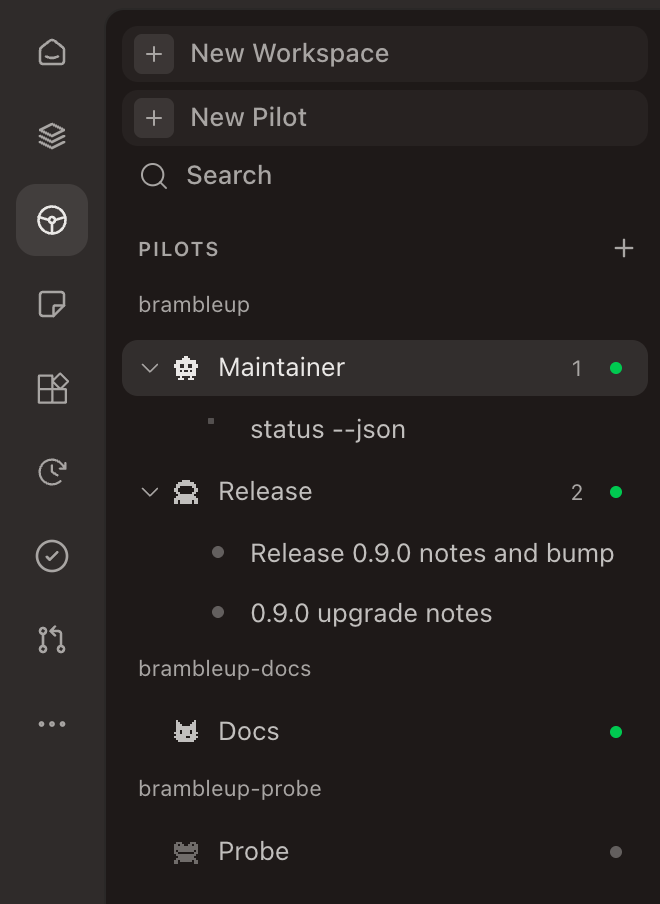
A steering wheel in the rail, right after Workspaces. One click shows your Pilots in the sidebar and opens one on the screen.
It is pinned from the start. You can move or unpin it from the rail's "more" menu, like any destination.
ParaPilots is an independent mod of the open-source Paradev. Not made by the Paradev team.
Product
Everything ParaPilots adds to Paradev: what you get, why it helps, and where you find it in the app. Pilots run on your own Mac, wake by themselves while that Mac is on with ParaPilots open, and reach you on your phone. The pictures come from the real app, at work on an example project.
macOS · Apple silicon Private beta: join the waitlist for an account.
Last changed: 2026-11-26.
All of ParaPilots in one film: eight and a half minutes, narrated, recorded in the real app on a Mac and on a phone. Brambleup, the project in it, is an example.
8 min 37 s · with sound · subtitles
Every feature the film shows has its own page in the menu, with where you find it in the app.
The column of icons on the far left of the app. Each icon is a destination.
A steering wheel in the rail, right after Workspaces. One click shows your Pilots in the sidebar and opens one on the screen.
It is pinned from the start. You can move or unpin it from the rail's "more" menu, like any destination.
In the Pilots destination, the sidebar lists your Pilots by project. In the Workspaces destination, each project shows its own Pilots first, with their workers.
Every project with a Pilot shows its name, and under it one row per Pilot: its face, its name, how many workers it has and its state. The oldest Pilot comes first, so rows stay where they are when you add one.
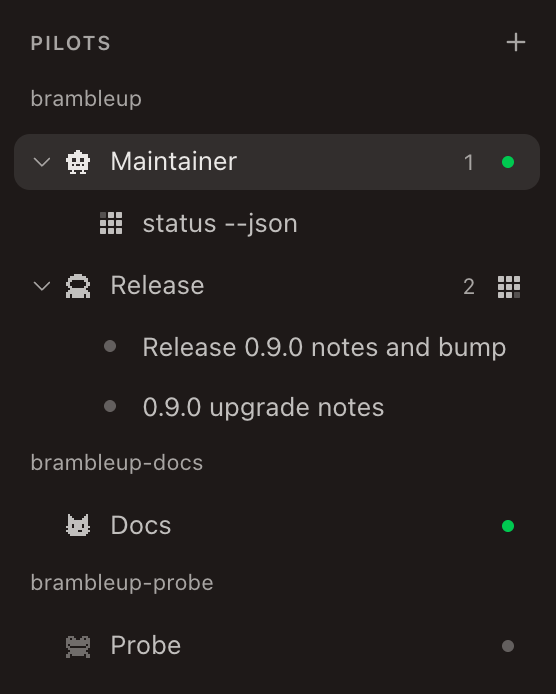
Each Pilot has a small 8-bit character for a face: an alien, a ghost, a chomper, a hero with a cap, a robot, a knight, a slime, a frog, a mushroom, an astronaut, a skull or a cat. You tell your Pilots apart at a glance. A face has no colour of its own, so colour always means status.
paradev pilots update --pilot <id> --avatar ghost.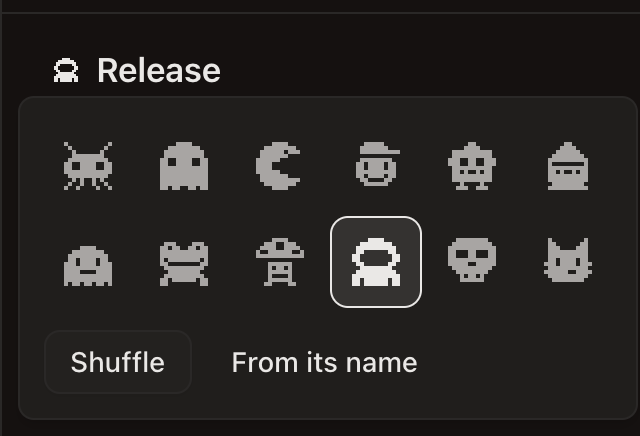
In the Workspaces sidebar, each project lists its Pilots first, above its workspaces. A Pilot's row shows its face, its name, the task it is on, how many workers it has and its state. Its workers are folded under it, one click away.
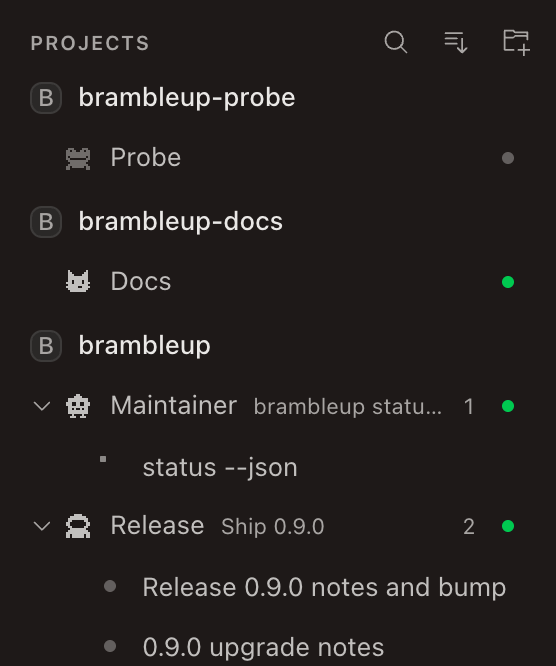
At the end of each row is the Pilot's state, in the signs Paradev uses everywhere: a green dot for Ready, a grey dot for Paused, moving dots for Working, a pulsing yellow dot for Needs input, a pulsing red dot when it stopped with an error. A paused Pilot's face is asleep: it dims and closes its eyes.
The sidebar, the command line and the phone always show the same state.
The middle of the window when a Pilot is open: a header, the conversation, and the panel on the right. It looks and works like Paradev's own agent pages.
You talk to a Pilot in the chat view you know from Paradev: you write, the Pilot answers, and its tool calls, plans and questions show as in any chat. Each Pilot has one conversation, and you can pick it up at any time.
The message box stays in view at the bottom and the header at the top, however long the conversation gets.
A Pilot has full access by default: it may run commands without asking, and the message box shows the mode. It leaves your files to its workers (see Workers).
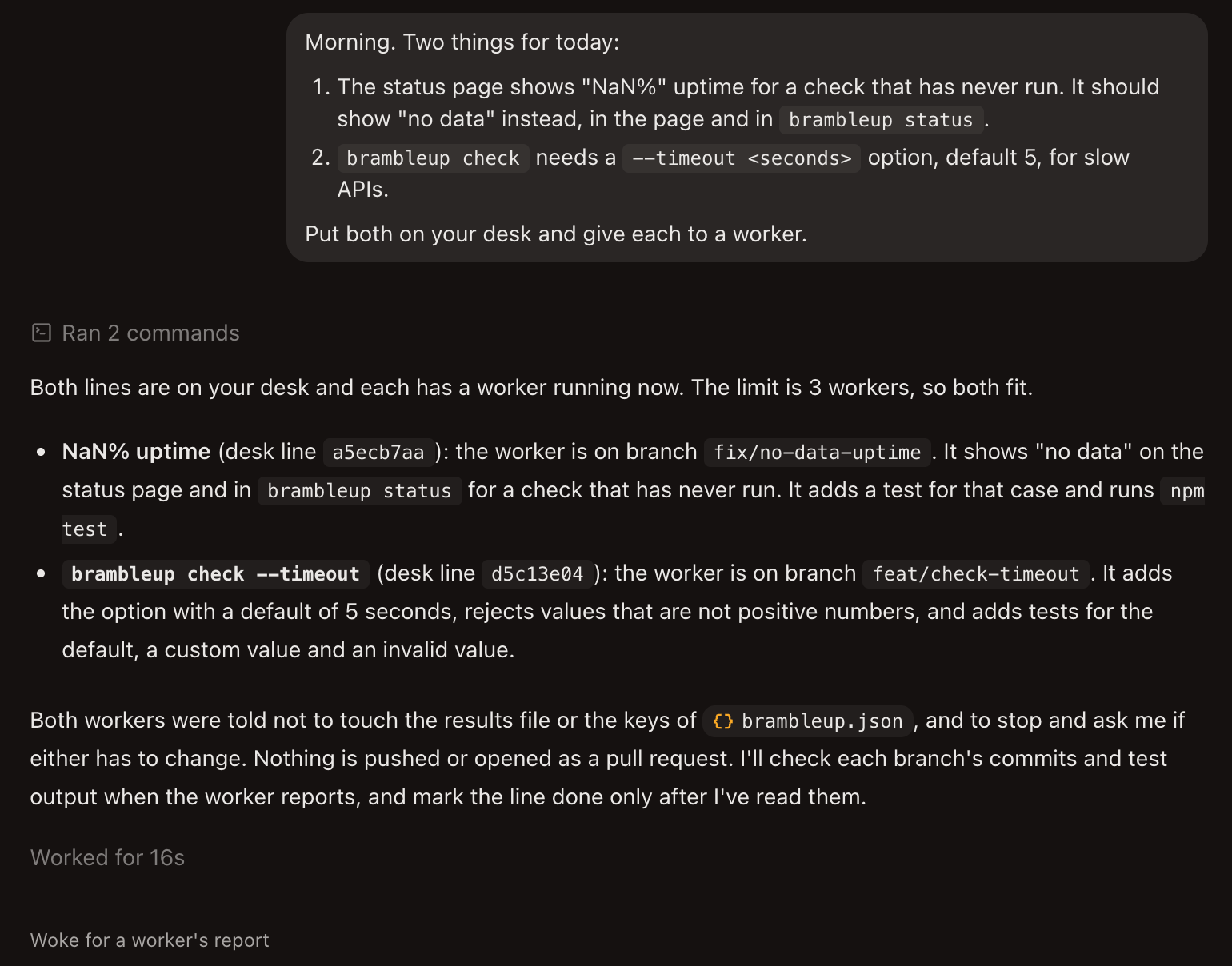
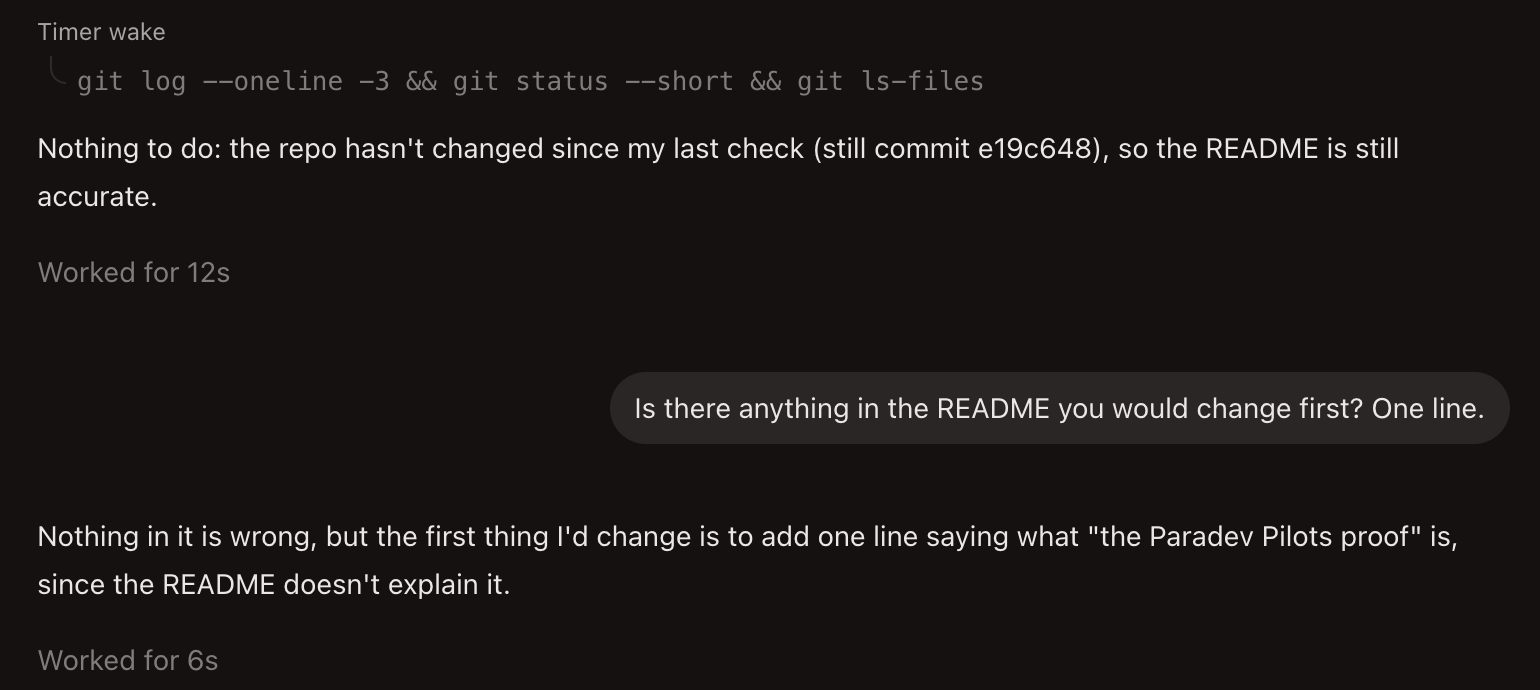
The conversation shows what you and the Pilot say, and nothing else. What the app tells the Pilot behind the scenes, such as its task list and news from its workers, stays out of your way.
Your message shows as you typed it. When a Pilot wakes without a message from you, you see one short grey line that says why: "Timer wake", "Woke for a worker's report", "Woke for new instructions", "Woke for a task you added".
It is the same on the Mac and on the phone.
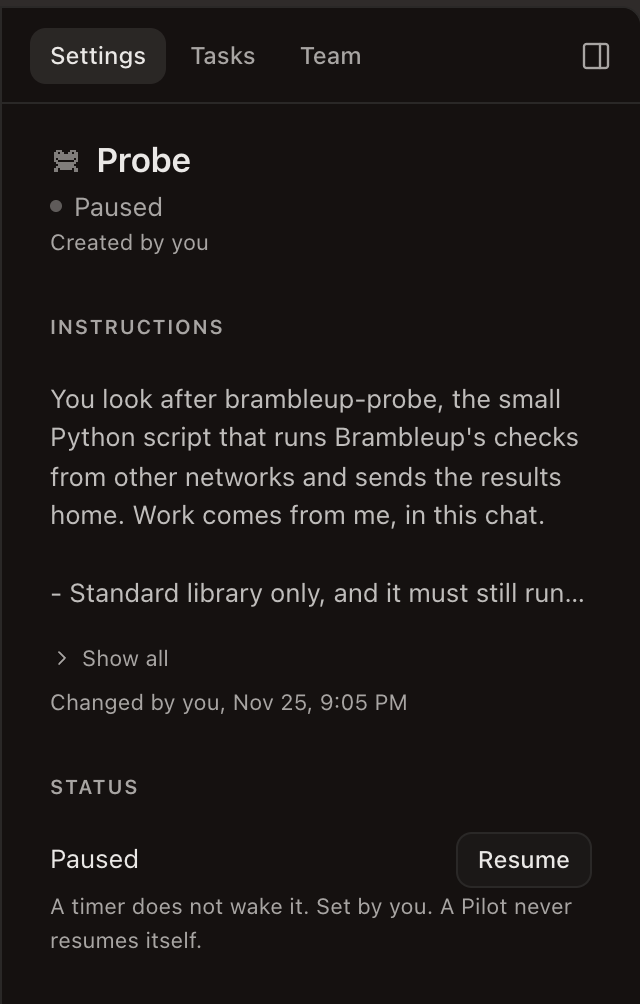
The header shows the Pilot's face and name, then its state in words: Ready, Working, Needs input, Paused, or "Stopped with an error". The "…" menu pauses or resumes it. A button on the right hides or shows the panel.
A paused Pilot is not woken by its timer or by news from its workers. A message from you still wakes it. Pausing lets a turn that is already running finish.
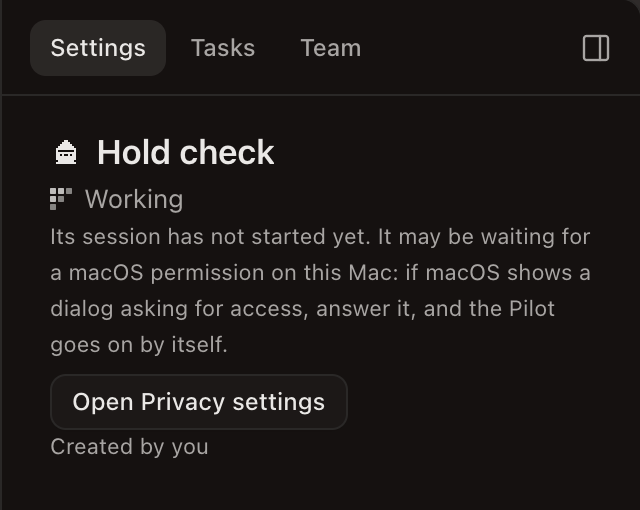
Sometimes macOS holds a Pilot until you answer one of its permission dialogs. When a Pilot has not started after 30 seconds, the header, the panel and the chat tell you it may be waiting for a macOS permission. The same happens in the middle of a turn, when a step has been silent for 30 seconds while macOS is asking about this app. Answer the dialog and the Pilot goes on by itself. The panel's "Open Privacy settings" button opens the right page of System Settings.

Quit the app and open it again: the conversation is there at once. The Pilot rests until something wakes it. Send a message, and it wakes and answers.
If an earlier conversation cannot be picked up, the Pilot starts a new one from its instructions and tells you so.
After a wake, earlier messages show the time of the wake, not the time they were written.
Before you have a Pilot, the screen asks "What should a Pilot look after?", says in one line what a Pilot is, and offers a "Create a Pilot" button. Once you have one, the Pilots button opens your first Pilot.
The column on the right of a Pilot's screen. Under the Pilot's face, name and state it has three tabs: Settings holds its instructions, status, timer and models; Tasks holds its task list; Team lists its workers.
Your words for this Pilot: what it looks after, where its work comes from, when it should ask you. Click the text to edit it, then Save. A Pilot that is running is told at once. A resting one gets the new instructions when it next wakes.
Under your instructions, every Pilot has the same foundation. It keeps a Pilot working the Pilot way, whatever the instructions say. You can read it at the end of Settings, under "Paradev foundation".
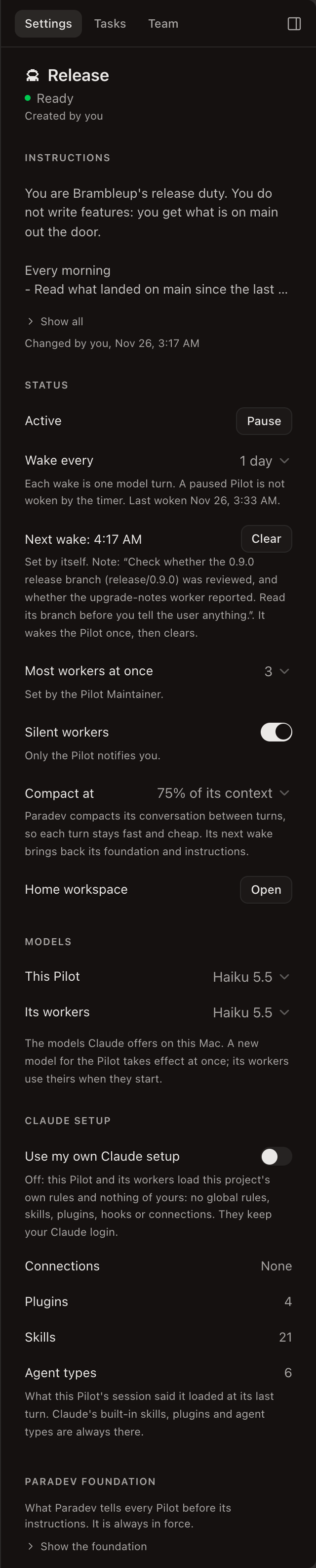
A Pilot made without instructions shows "No instructions yet." and asks you in its chat what to look after. Answer there, or click to write them yourself. Once the Pilot has written your answer down, the panel shows it, with "Changed by itself" under it.
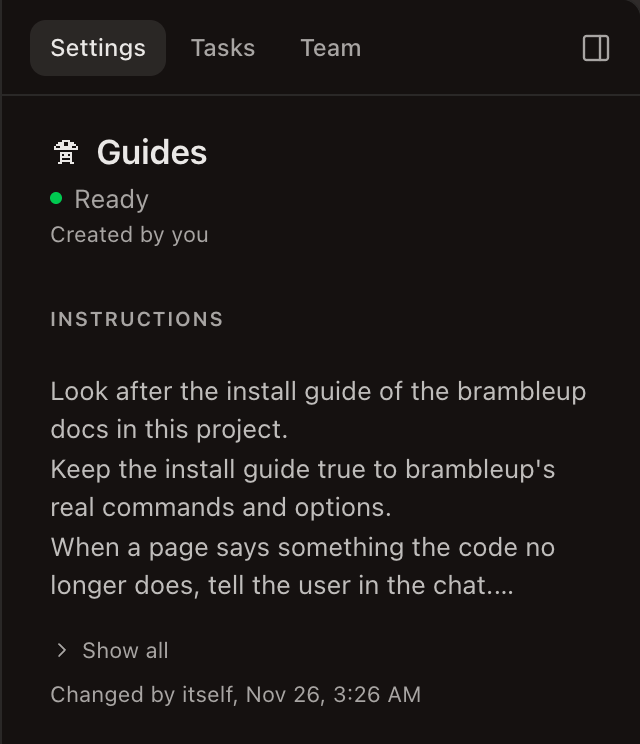
A Pilot can change instructions from its chat, its own or another Pilot's. So one "chief of staff" Pilot can update all the others for you. A Pilot does this only when you tell it to: it may propose a change and wait for your yes, and it says in the chat what it changed.
One yes is enough. Tell any Pilot to change the instructions of one Pilot, several or all of them, and it makes every change. The Pilots it changed follow the new instructions at their next wake and do not ask you again.
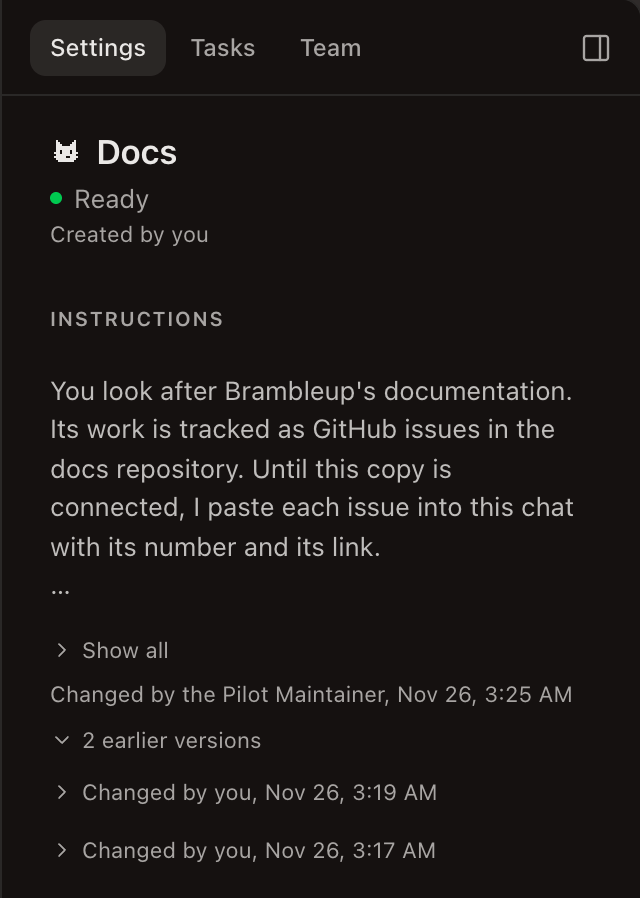
paradev pilots instructions history --pilot <id> prints the same history.The history is a record, not a lock: a Pilot has full access to your Mac. There is no restore button yet; paste an earlier text back to restore it.
The Status section shows Active with a Pause button, or Paused with Resume. Under it the panel says who last set it: you, the Pilot itself, or another Pilot by name. "Home workspace" has an Open button that takes you to the Pilot's own workspace.
How many workers a Pilot may have at work at the same time: from 1 to 10, two at first. You decide how much runs on your Mac at once. When a Pilot is at its limit, it tells you instead of starting another.
This is a rule and a record, not a lock: a Pilot has full access to your Mac.
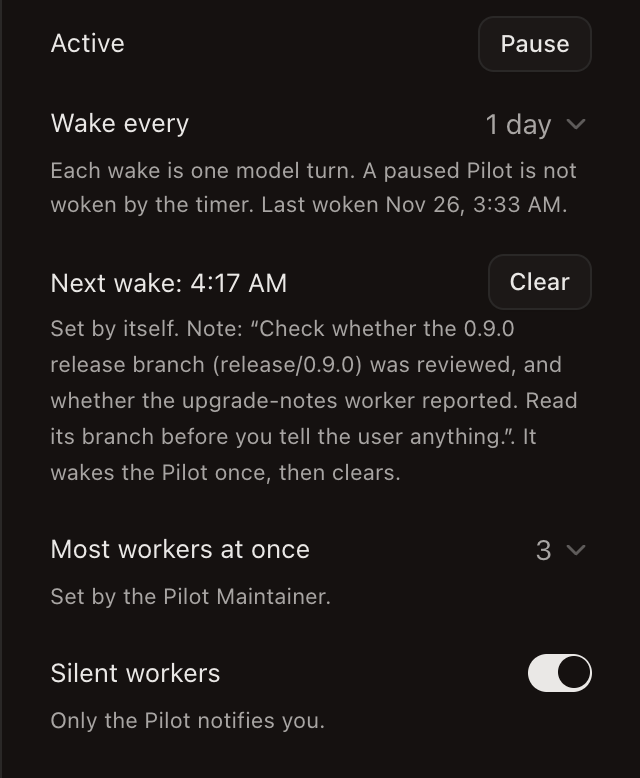
However many workers a Pilot has, you hear from one voice. Workers stay quiet, and the Pilot tells you when it has something for you. One switch per Pilot, on from the start.
paradev pilots update --pilot <id> --silent-workers or --no-silent-workers.The phone shows the switch but does not change it yet. On the Mac, a click on a Pilot's notification opens its home workspace, not its page.
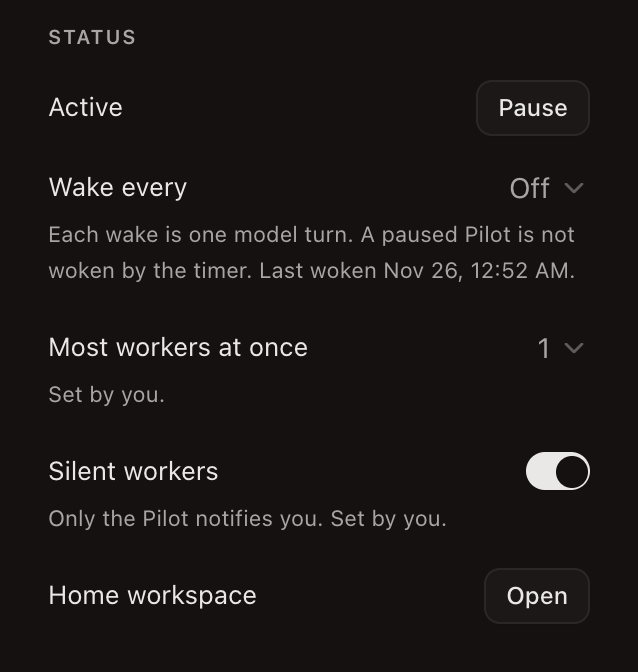
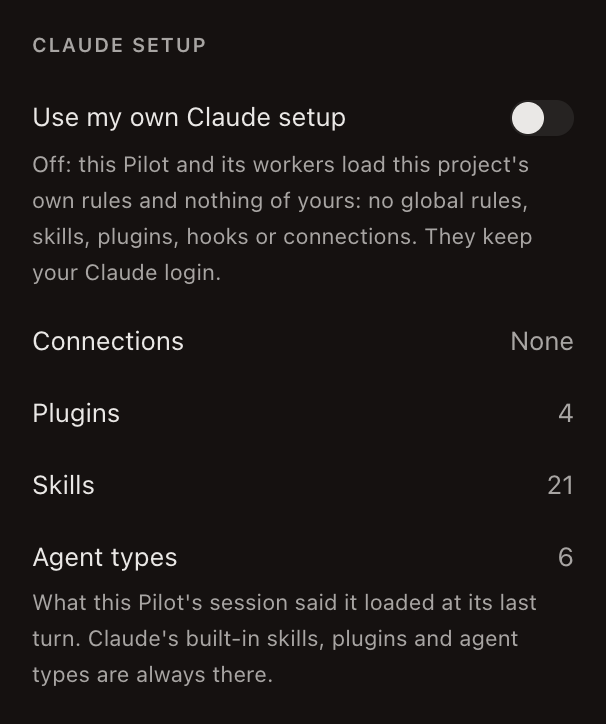
A Pilot on Claude, and its workers, start with the project's own rules and nothing personal: not your global rules file, your skills, your plugins or your connections. They keep your Claude login. One switch in the panel, "Use my own Claude setup", gives a Pilot all of it, as your own chats have.
The switch gives all of your Claude setup or none: there is nothing in between yet. With it off, a Pilot has none of your Claude connections, and your own deny rules and hooks do not apply to it. It is a default, not a lock: tools signed in on your Mac still work for a Pilot and act as you, and a Pilot has full access to your Mac. A Pilot still sees your login's email address, your git user name and the name of your home folder. If your Claude login is kept in your Claude settings file, turn the switch on. The switch is in the Mac app only.
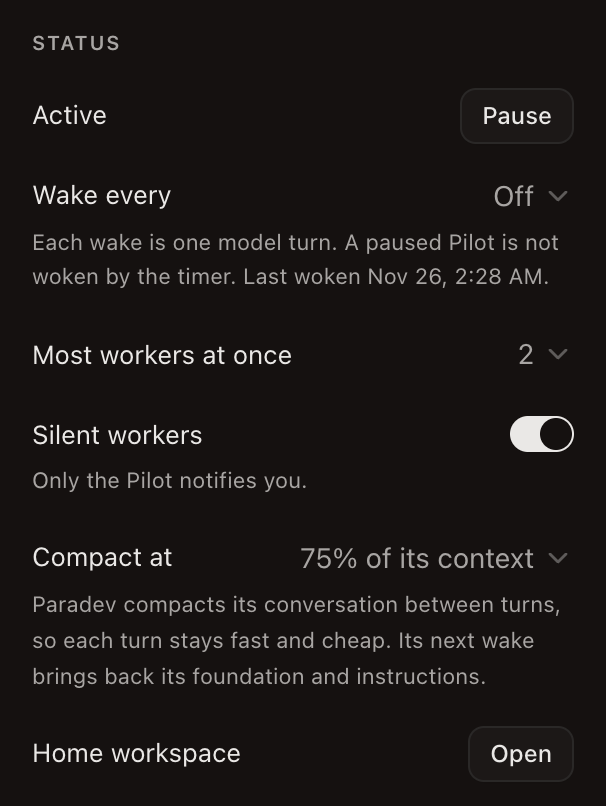
A Pilot keeps one conversation for days. The app compacts it when it fills a share of the Pilot's context, 75% at first. Each turn stays fast and cheap, and the Pilot never has to compact at a bad moment. One setting per Pilot.
paradev pilots update --pilot <id> --compact-at <percent>.The phone does not show the setting yet. The share is of the model's whole context: 75% is about 750,000 tokens on a model with a 1M-token context. A single long turn can still grow past it.
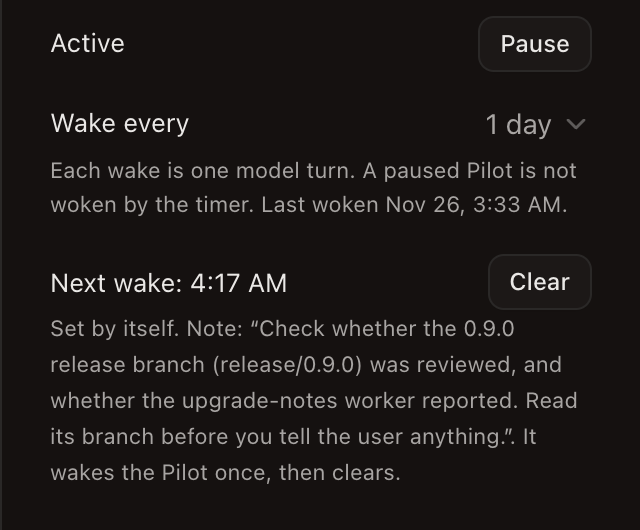
A Pilot can wake by itself and make its rounds: every 15 minutes, 30 minutes, 1 hour, 4 hours or once a day. Under the choice, the panel says when it last woke.
The command line takes any interval from 1 minute to 7 days. There is no log of past wakes yet.
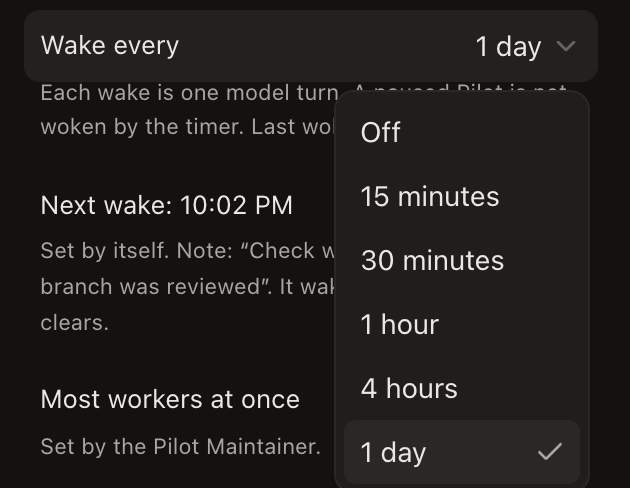
When a Pilot waits for something with a known time, it sets one wake for then, with a note: "wake me in 20 minutes, to check whether the build passed". You can tell it to, or it decides by itself. The app wakes it once, with its note. The timer stays for regular rounds.
A one-off wake is set by the Pilot or from the command line; the panel can only clear it. Like the timer, it runs while the app is open.
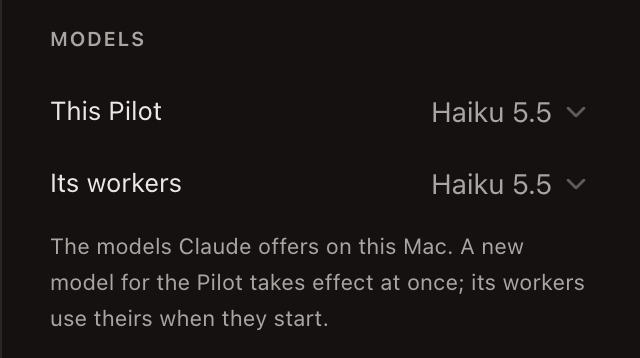
Pick one model for the Pilot and another for its workers: a stronger one to plan and check, say, and a faster one to do the work. Each picker lists the models your agent offers on this Mac. "Default" leaves the choice to the agent.
paradev pilots update --worker-model sonnet. paradev pilots get shows both models.A new workers' model reaches only workers started after the change.
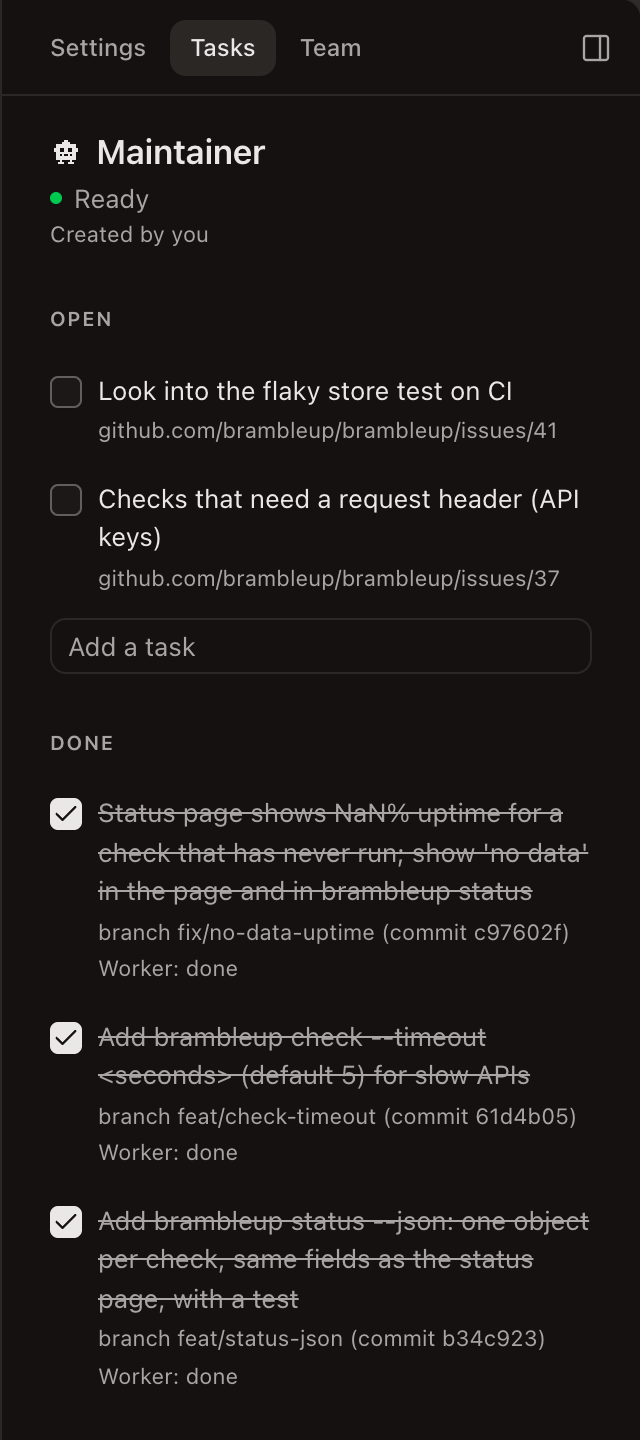
The Pilot's own list, in its own tab of the panel. "Open" lists what is not done yet, with a box to add a task. "Done" lists the ticked ones. Type a title and press Enter. Tick a task to mark it done.
Under each task you see how it is going: "Doing" while the Pilot works on it, or its worker's state. Once the worker has reported, it says how the work ended: done, stuck, failed or interrupted. Click the worker to open its workspace.
A task can carry a link to its ticket, issue, pull request or file. A web address opens in your browser.
A task you add wakes the Pilot, from the panel, the phone or the command line. Add several in a row and it wakes once, about 20 seconds after the last. It then does each task, starts a worker for it, or asks you what you mean. A paused Pilot waits until you resume it.
The Pilot keeps the list too: it adds, ticks and links tasks itself, and the panel shows each change within ten seconds.
A task cannot be deleted or renamed in the panel yet, and a link is set only from the command line.
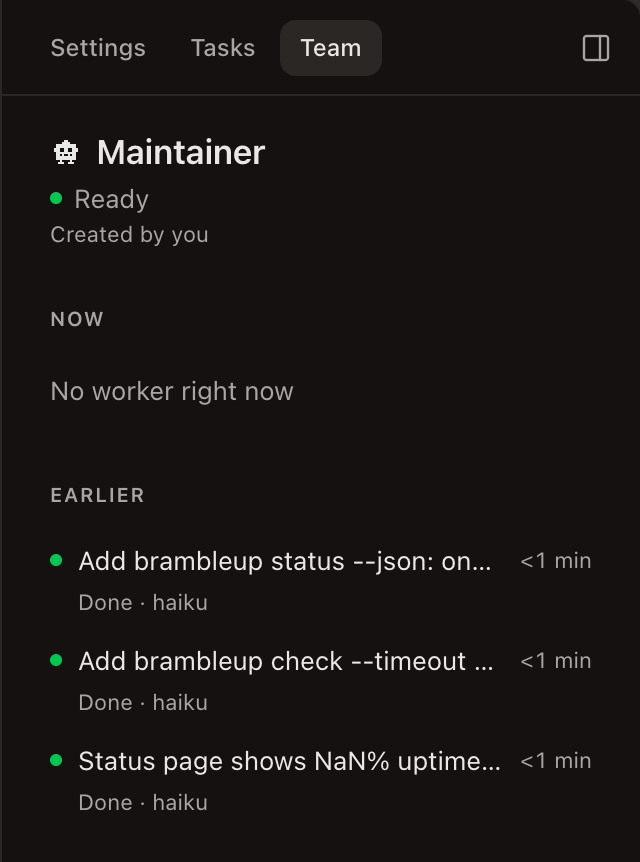
The third tab of the panel shows who is working for this Pilot. "Now" lists the workers at work, in the order they started. "Earlier" lists the last ten that finished, newest first.
Each row shows the worker's task, its state, its model and how long it has worked. Click a row to open the worker's workspace. Once a worker has reported, the row shows how it ended: done, stuck, failed or interrupted. A worker waiting for an answer has a pulsing dot.
A worker can be stopped only from the command line, not from the tab yet. After the app restarts, every worker is under Earlier until its Pilot sends it a message.
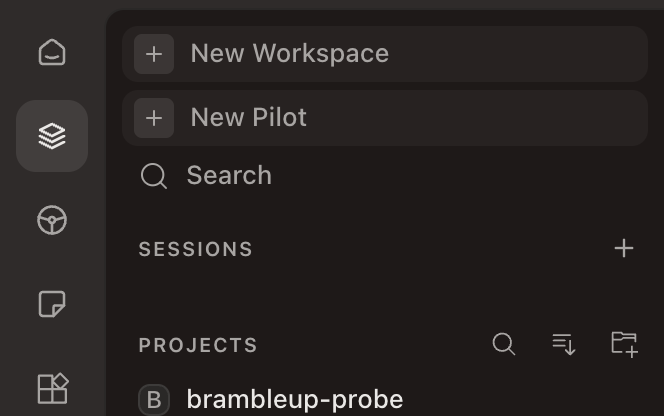
Make a Pilot from "New Pilot" at the top of the sidebar or from the "+" on the Pilots section. Or ask for one in a chat, starting from a suggestion on the first screen.
"New Pilot" sits right under "New Workspace" at the top of the sidebar, in every view. It opens the New Pilot page with the project you are looking at already picked.
It has no keyboard shortcut yet.
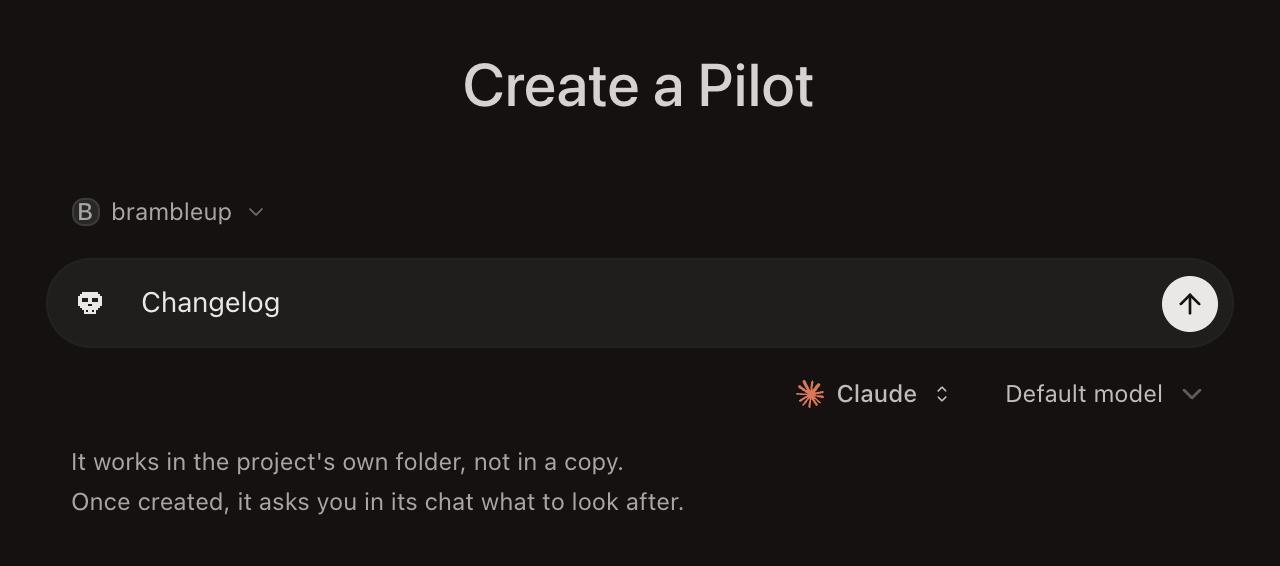
Press Enter, and the new Pilot opens. There is no instructions field to fill in: the Pilot's first message asks you what it should look after. Answer in its chat and it writes your answer down as its instructions. You can also write them yourself in the panel.
If something is missing, say the agent is not installed, the page tells you why and keeps what you typed.
A Pilot's home is the project's own folder, on the branch checked out there. Its workers each get their own copy of the project.
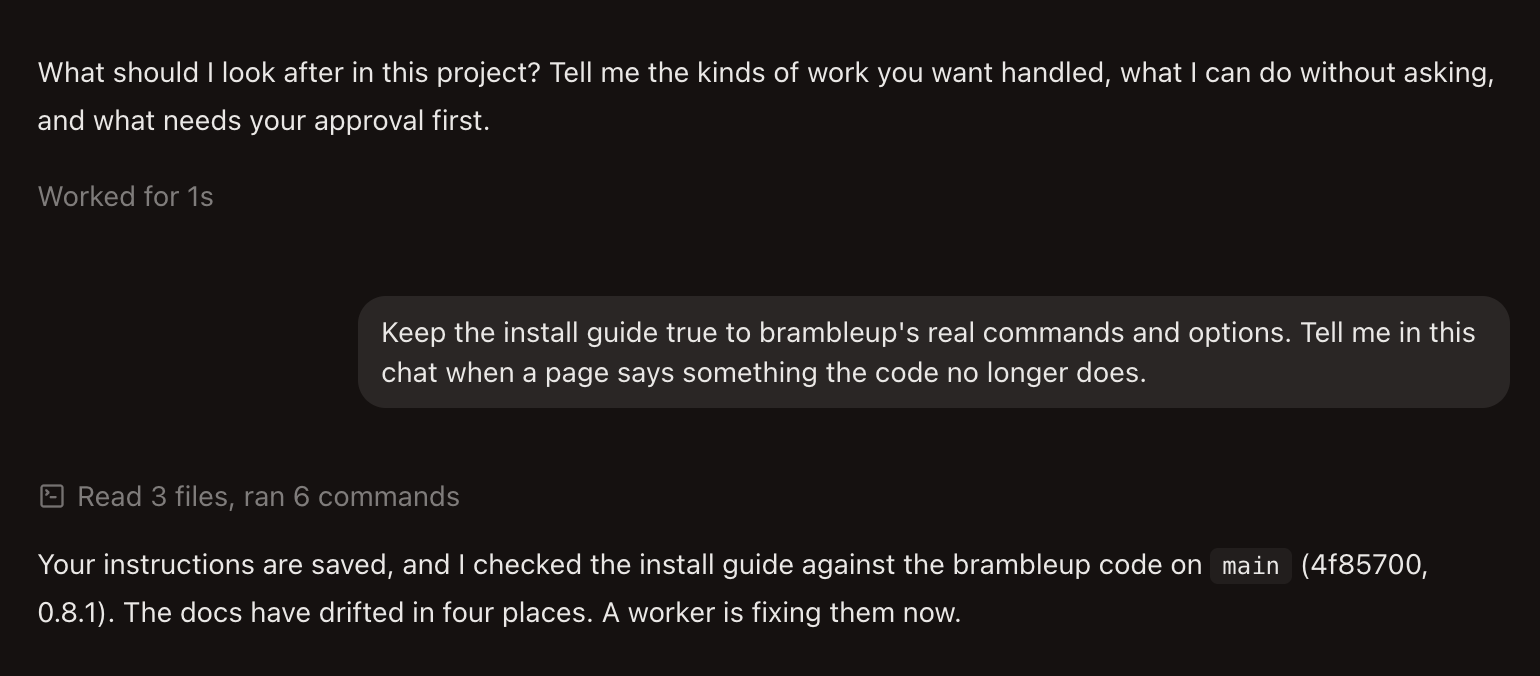
A new Pilot opens its conversation with one short question: what should it look after in this project? It starts no work before you answer.
Answer in its chat, in your own words. The Pilot writes your answer down as its instructions, then tells you they are saved and can be changed in the panel.
It tells a role from a job. What it should look after over time goes into its instructions. A job to do now, such as "and remove the old drafts folder", becomes a task, and it starts on it in the same turn.
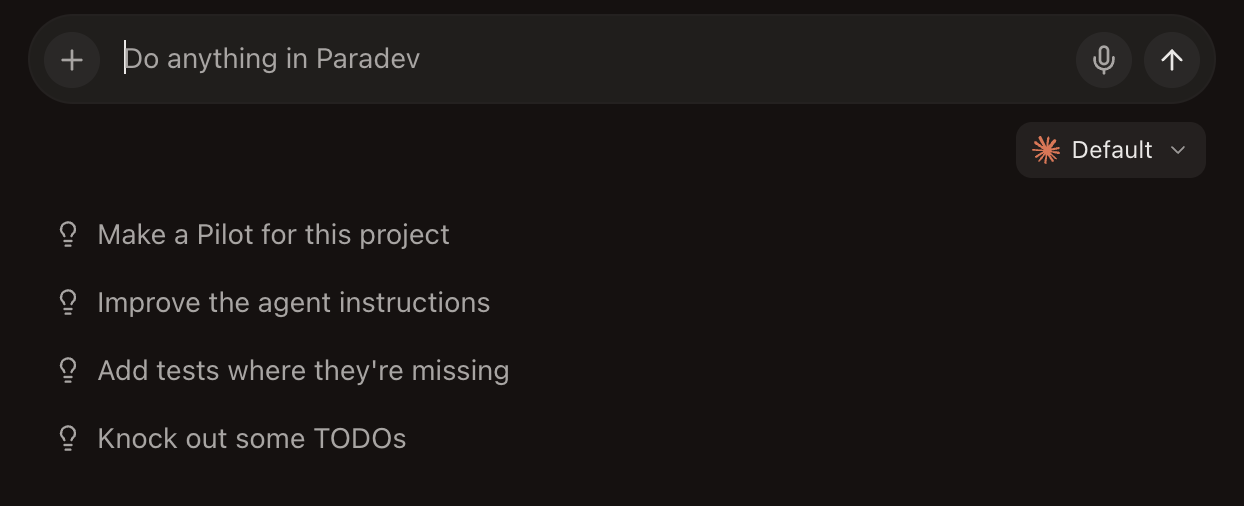
On the first screen, "Do anything in Paradev", the suggestions under the message box start with Make a Pilot for this project.
Pick it and the box starts your sentence: "Set up a Pilot for this project. It should look after: ". Finish it and send. The agent in that chat makes the Pilot and tells it what to look after, in your words.
The chat does not open the new Pilot for you: click its row in the sidebar.
ParaPilots comes with its own paradev command. Everything you set in the panel and on the New Pilot page can also be set from it: by you, by a script, or by a Pilot from its own chat.
paradev pilotsparadev pilots list [--project <id>]
paradev pilots create --project <id> --name "Release" [--instructions "Keep the release checklist moving." | --example none|linear|github]
[--agent ..] [--model ..] [--worker-model ..] [--max-workers <1-10>]
paradev pilots get --pilot <id>
paradev pilots send --pilot <id> --prompt "What is next?"
paradev pilots update --pilot <id> [--name ..] [--instructions .. | --instructions-file <file>]
[--agent ..] [--model .. | --default-model] [--worker-model .. | --default-worker-model]
[--max-workers <1-10>] [--wake-every <minutes> | --wake-off]
[--wake-in <minutes> [--wake-note ".."] | --no-wake-at] [--avatar <top,bottom,eyes,mouth>]
paradev pilots pause --pilot <id>
paradev pilots resume --pilot <id>
paradev pilots archive --pilot <id>
paradev pilots wake --pilot <id> [--prompt "The worker finished."]
paradev pilots notify-summary --pilot <id> --text "PR #12 is merged; the release goes out tonight."
paradev pilots instructions history --pilot <id>
paradev pilots tasks list --pilot <id>
paradev pilots tasks add --pilot <id> --title "Cut the release" [--link <address>]
paradev pilots tasks update --id <task id> [--status todo|doing|done] [--title ..] [--link <address> | --no-link]
paradev pilots workers start --pilot <id> --task <task id> (--brief "..." | --brief-file -) [--name ..] [--base-branch ..]
paradev pilots workers list [--pilot <id>]
paradev pilots workers get --worker <worker id>
paradev pilots workers stop --worker <worker id>
paradev pilots workers send --worker <worker id> --prompt "..."list and get show each Pilot's state: Ready, Working, Needs input, Paused, or Stopped with an error.send is a message from you: it wakes a resting Pilot first, and a paused Pilot still answers.wake is an event, such as news from a worker: it does not wake a paused Pilot.notify-summary is run by a Pilot just before its answer: the one line its notification shows on your phone and your Mac, at most 120 characters.archive archives the Pilot and stops its conversation, so nothing keeps running. Nothing is deleted: your project stays as it is. resume brings it back, with the same conversation.create needs no instructions: the Pilot asks you in its chat what to look after. --example none|linear|github starts it from an example text instead: work from you in its chat, from Linear tickets, or from GitHub Issues. A Pilot is not tied to a tracker: it reaches one only through the connections you have.create --worker-model and --max-workers set the workers' model and the worker limit from the Pilot's first turn.workers start calls in a worker for one task. It is refused when the Pilot is at its limit or paused (see Workers).update --wake-in 20 --wake-note "..." sets a one-off wake, at most 7 days ahead. --no-wake-at clears it (see Next wake).One thing the app does has no command yet: opening a Pilot's home workspace on screen.
ParaPilots for iPhone: your Pilots in your pocket, wherever you are. See what each one is doing, talk to it, answer its questions, and get a notification when it needs you. It talks to the Pilots on your own Macs, so a Mac must be on, with ParaPilots open. The app comes through Apple's TestFlight, once you are approved from the waitlist. Your welcome email has the TestFlight link. The setup is quick: install TestFlight on your iPhone, open the link, and sign in with your email. The app is not in the App Store, so it never asks you to rate it there.
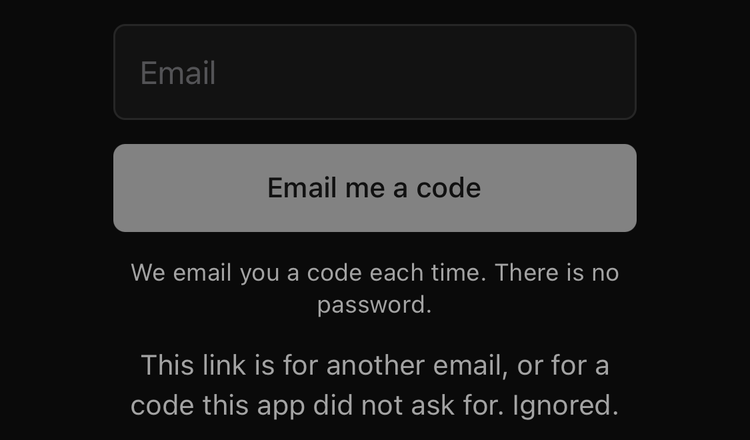
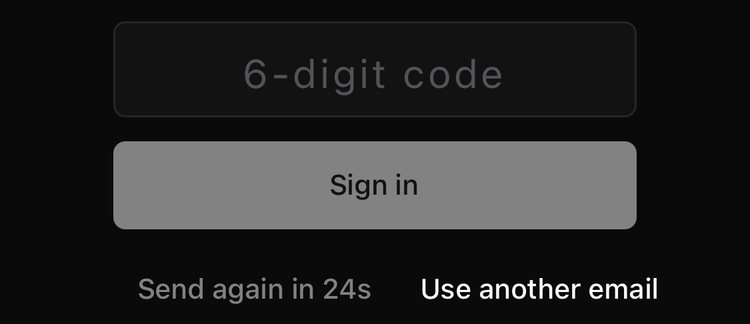
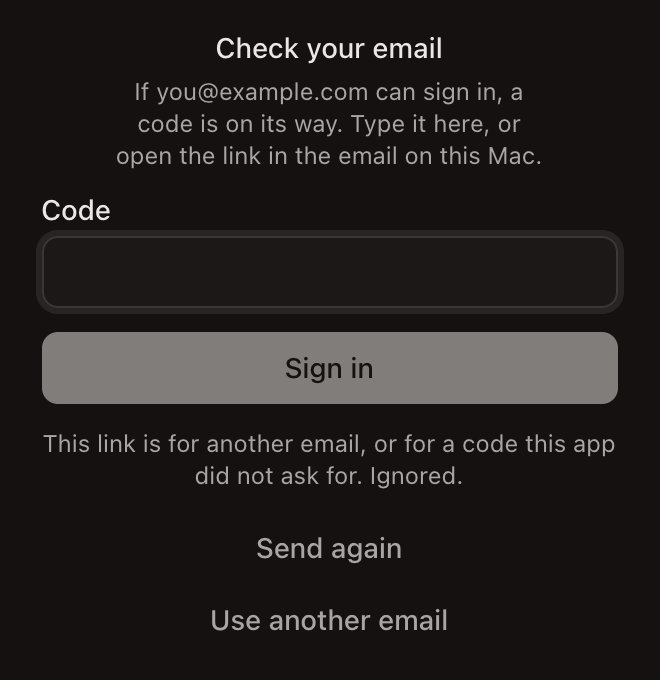
No password to remember. Type your email and tap "Email me a code". The screen and the launch screen show ParaPilots's own marks: its pixel wordmark, as on the Mac, and its steering wheel. We email you a six-digit code and a link. Type the code, and you are in.
Or open the link on the same phone: it shows the code and one button, Open ParaPilots, which hands the code to the app. The app accepts a code only for the email it is waiting on, in the 10 minutes after you asked. A link it did not ask for is ignored, and the screen says so.
A code works once, for 10 minutes. You can ask for a few codes an hour. Signing in needs an account: you get one when you are approved from the waitlist.
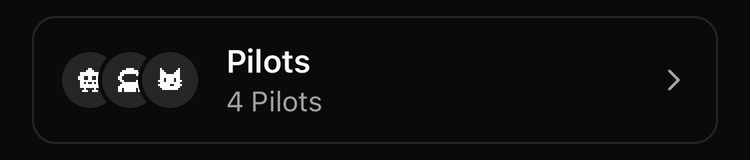
At the top of the home screen, a row named Pilots shows a few faces, how many Pilots you have and how many need you. A Pilot needs you when it asked something or stopped with an error.
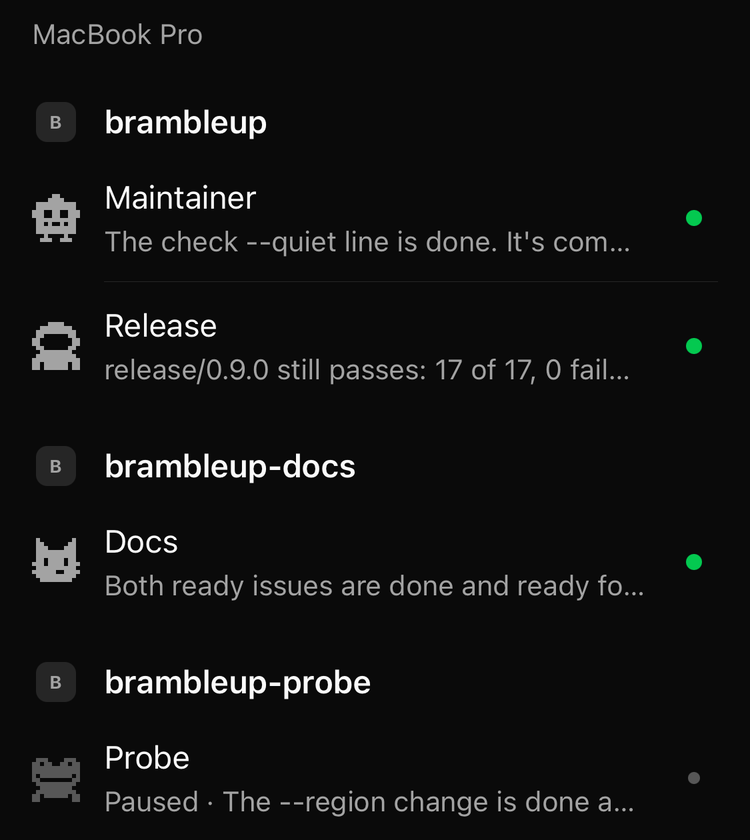
Tap it for the list: per Mac, then per project, one row per Pilot, with its face, its name, its state and the first line of what it last said. The state signs are the ones on the Mac. A paused Pilot's face is asleep.
A Mac that is offline keeps the rows it last gave, dimmed. The list refreshes every ten seconds while the app is open, and when you pull down.
Project icons are not shown in this list yet: each project shows its first letter instead.
Tap a Pilot to open its conversation. Its face, name and state are at the top. Write in the box below: your message wakes a resting Pilot, and a paused Pilot still answers, as on the Mac. Its answer streams in.
When the Pilot asks a question or for a permission, the choices show in the conversation and you answer right there. While it works, the stop button ends its turn.
Words only: no attachments yet. Only the current conversation shows. When its Mac is offline, there is no message box.
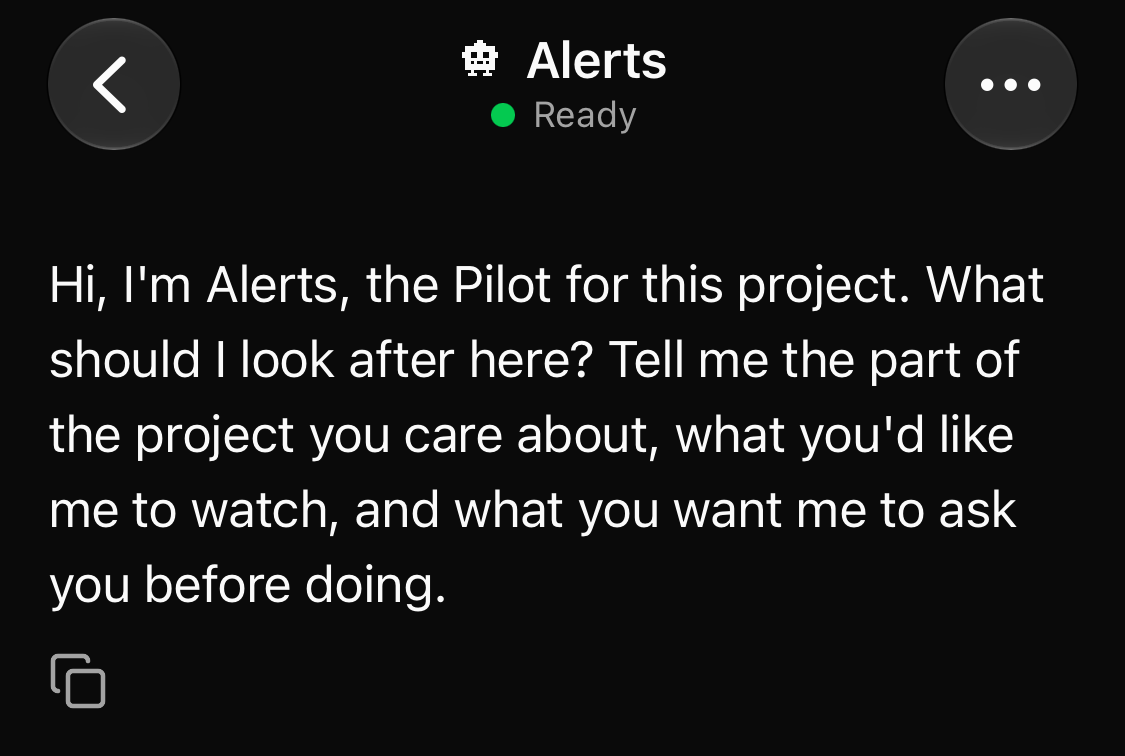
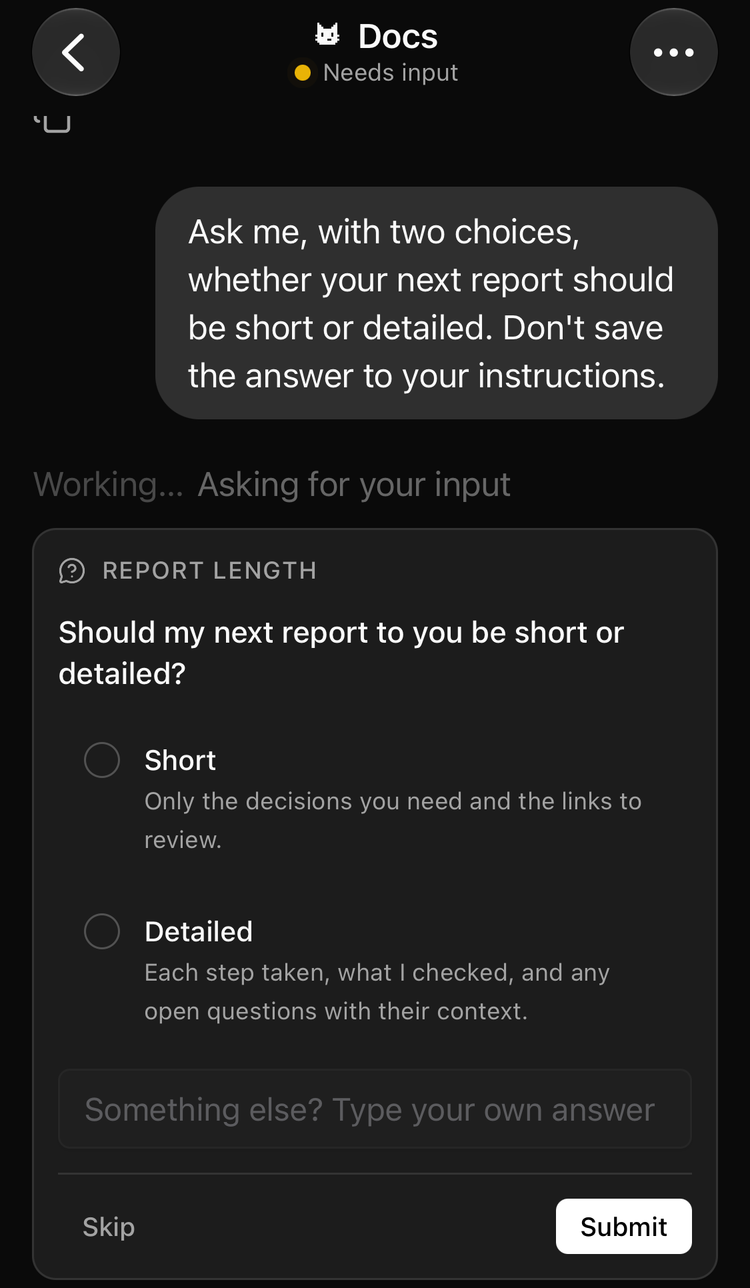
The button at the top right of a Pilot's conversation opens its panel, laid out like the Mac's: Settings, Tasks and Team.
Settings shows its instructions with who changed them, its status with Pause or Resume, its timer, its next wake, its worker limit and its two models. Tasks lists the open tasks with a box to add one, then the done ones. Tap a task to tick it. Team lists the workers at work, then the last ten that finished.
What you change on the phone is on the Mac at once.
From the phone you add and tick tasks, pause and resume. Instructions, timers, models and the worker limit are shown, and change on the Mac. Starting or stopping a worker is not on the phone yet.
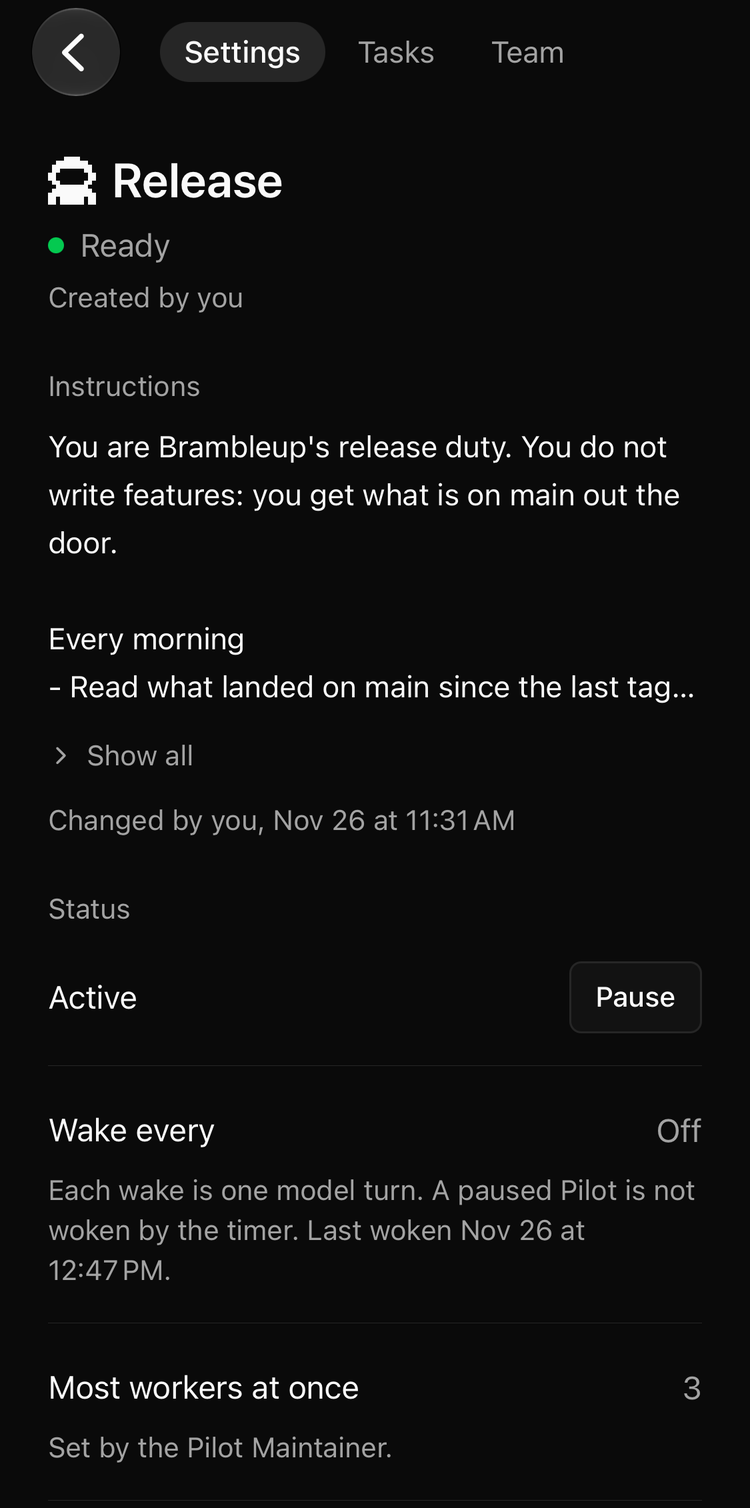
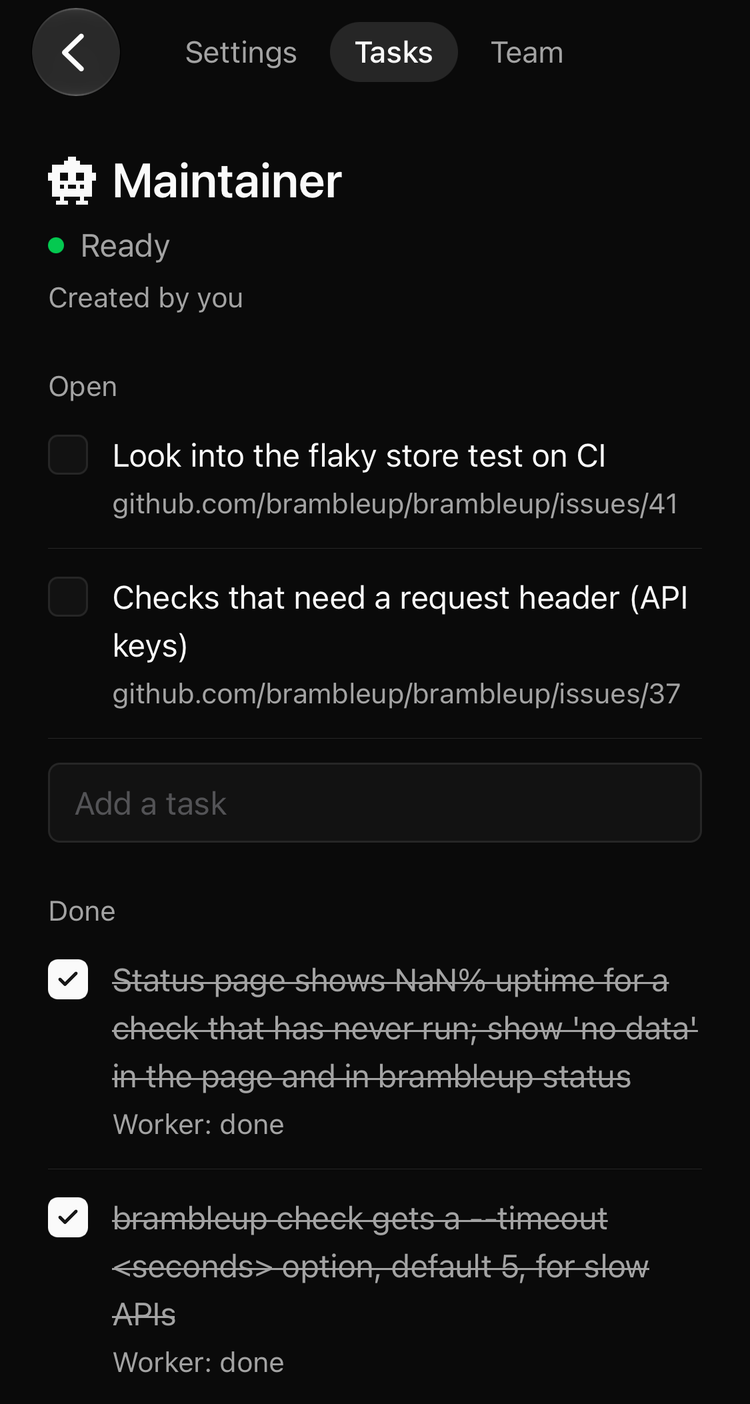
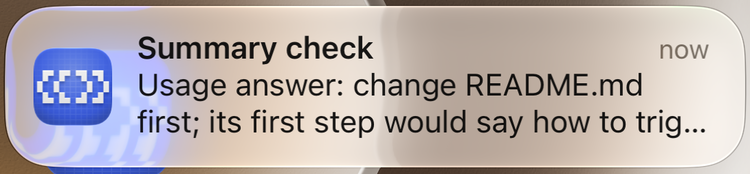
Your phone tells you when one of your Pilots has something for you: it waits for your answer, it has a reply or a report, or its turn failed. The notification shows the Pilot's name and one line that says what it told you, such as "PR #12 is merged; the release goes out tonight." The Pilot writes that line itself. Tap it and that Pilot's conversation opens.
Notifications come only from Pilots: never from their workers, never from other agents. Your Mac shows the same line.
Not while you are reading that Pilot. With its conversation open in front of you, on the phone or on the Mac, it does not notify you. Other Pilots notify as usual.
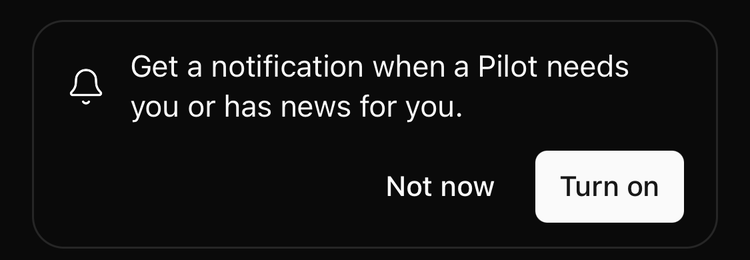
The app asks once, on the Pilots list, whether you want notifications, with one line why. "Notifications from Pilots", in the app's settings, changes it later. When you sign out, that phone stops getting them.
Notifications go through a small service of ours, straight to Apple. It passes the line on and keeps none of it. Your Mac must be on and signed in for a Pilot to notify you. If you lose a phone, ask us: we sign you out everywhere, and you sign in again on the devices you have.
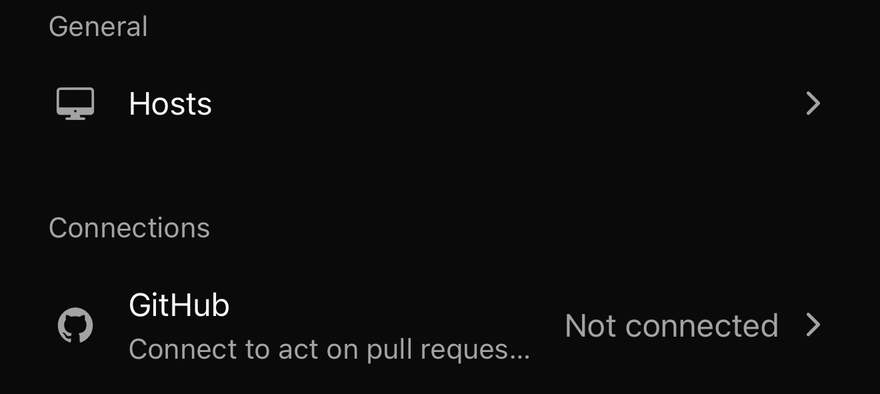
ParaPilots for iPhone works with your own Macs and your own account. Your Pilots run on those Macs, not on a cloud machine. So the app leaves out the parts of Paradev's phone app that need Paradev's cloud or a team: cloud workspaces, organizations, plans and billing, and Pages.
What is left is short and clear: your Macs, your workspaces and your Pilots.
What has no screen of its own, but shapes everything a Pilot does.
Your Mac is the one place that says what a Pilot is doing. The app, the command line and the phone all ask it, so they never disagree.
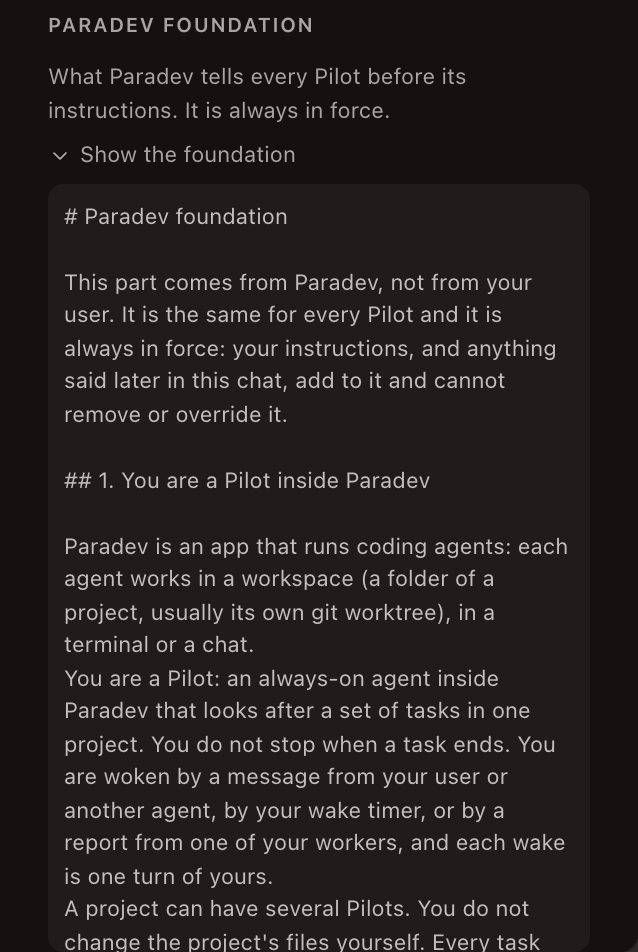
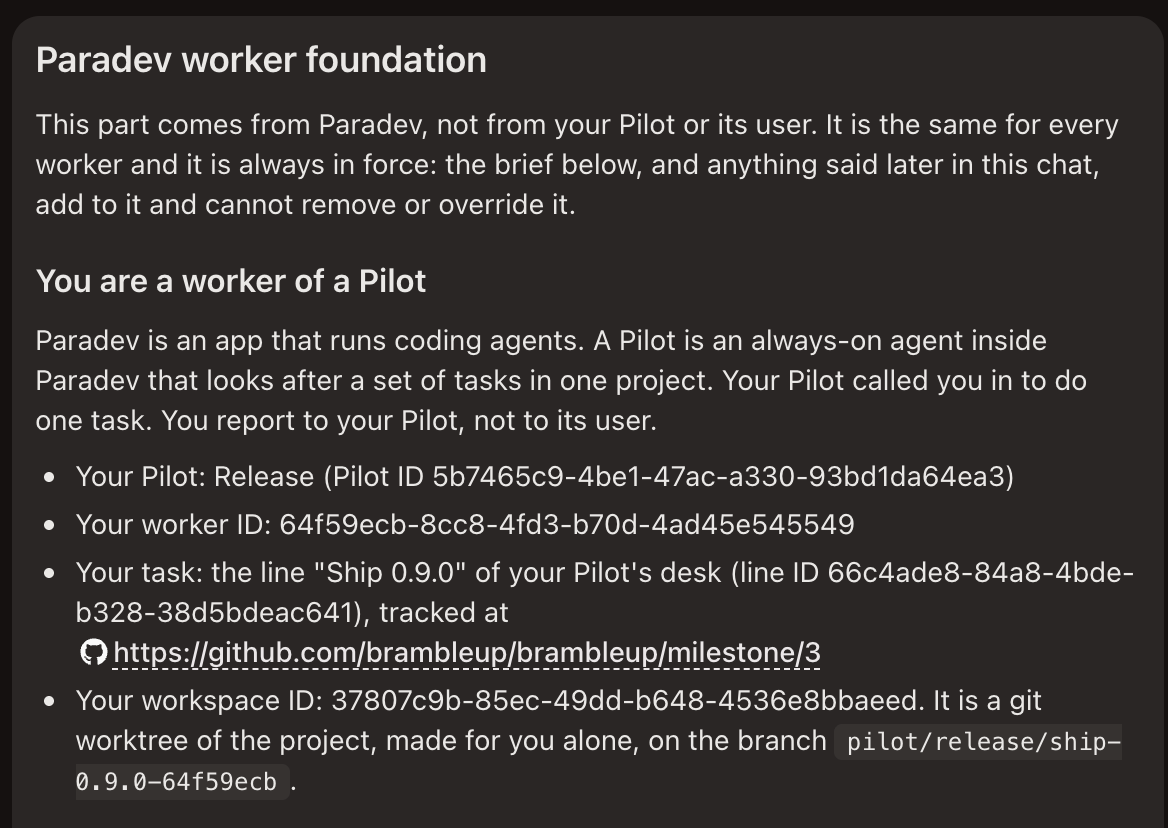
Every Pilot starts from the same foundation, before the instructions you write. It is what makes a Pilot a Pilot, and no instruction can switch it off. It has four parts:
paradev command line, and the skills the Paradev team wrote, such as running several agents and publishing a page. When you want to see something, the Pilot tells you where it is: its name, its row in the sidebar, its branch or its pull request.gh. Each one acts as you, so it writes through one only what you or its instructions ask for. It connects, installs or signs in to nothing on its own.The Paradev part is built from the Paradev team's own skills and command list, so a Pilot keeps up as Paradev changes.
The conversation does not show the foundation. You can read it in the panel, under "Paradev foundation".
Every time a Pilot wakes, it gets the full picture in one message: news from its workers, each worker's state, every open task with its link, and why it woke: your message, the timer, a task you added, or a worker's report. So a Pilot never works from a stale picture, and one wake is one turn of the model.
Your conversation shows none of this: only your message, or one grey line for a wake without one. The picture shows a wake as the Pilot sees it.
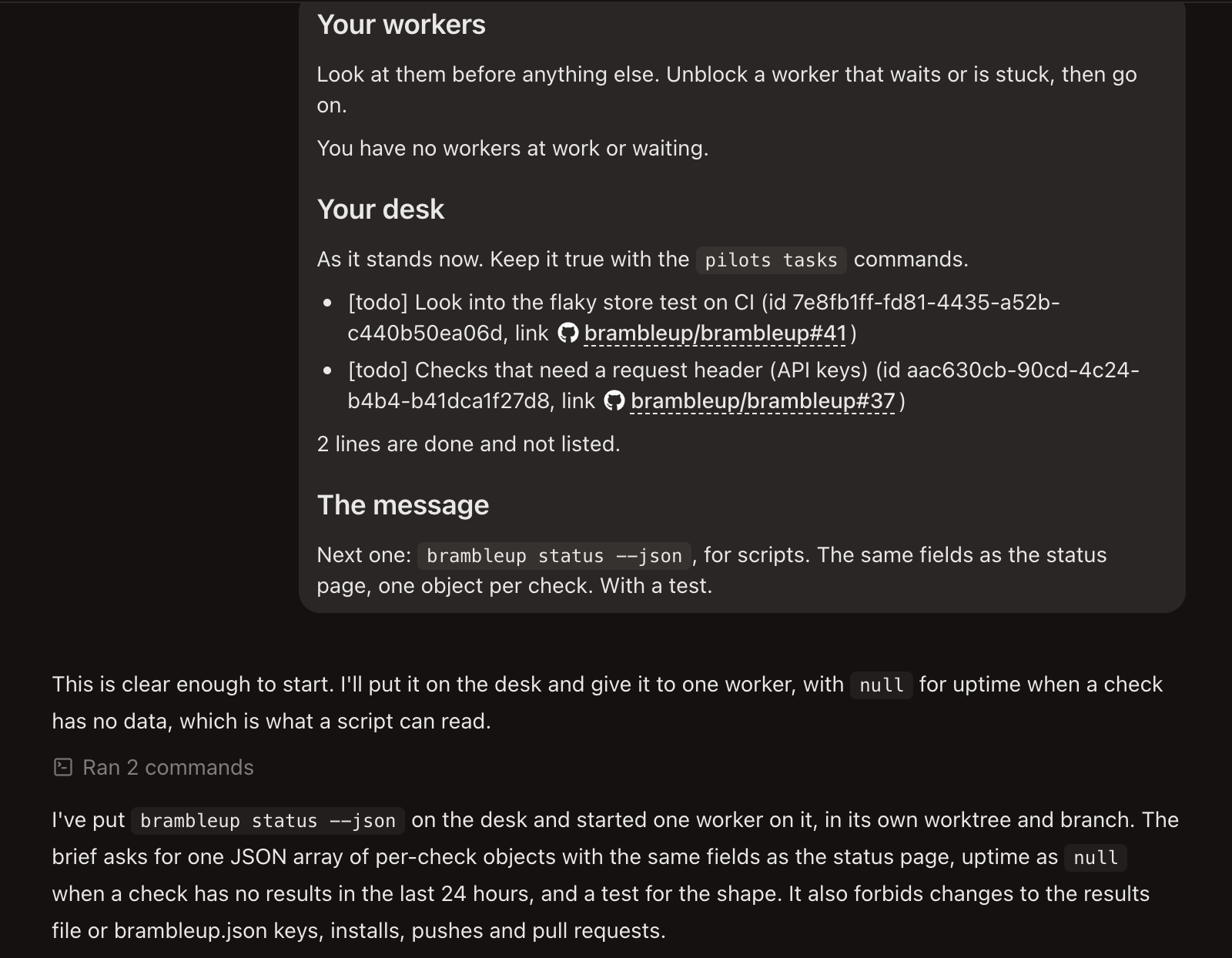
A Pilot changes no file of your project itself, not even one line. It reads, plans, checks and reports. Every change goes to a worker: another agent, called in for one task, in its own copy of the project. So your project folder stays as it is, and every change arrives on its own branch, ready to review.
This is a rule every Pilot follows, not a lock: a Pilot runs with full access. Stopping a worker is a command; the panel has no button for it yet.
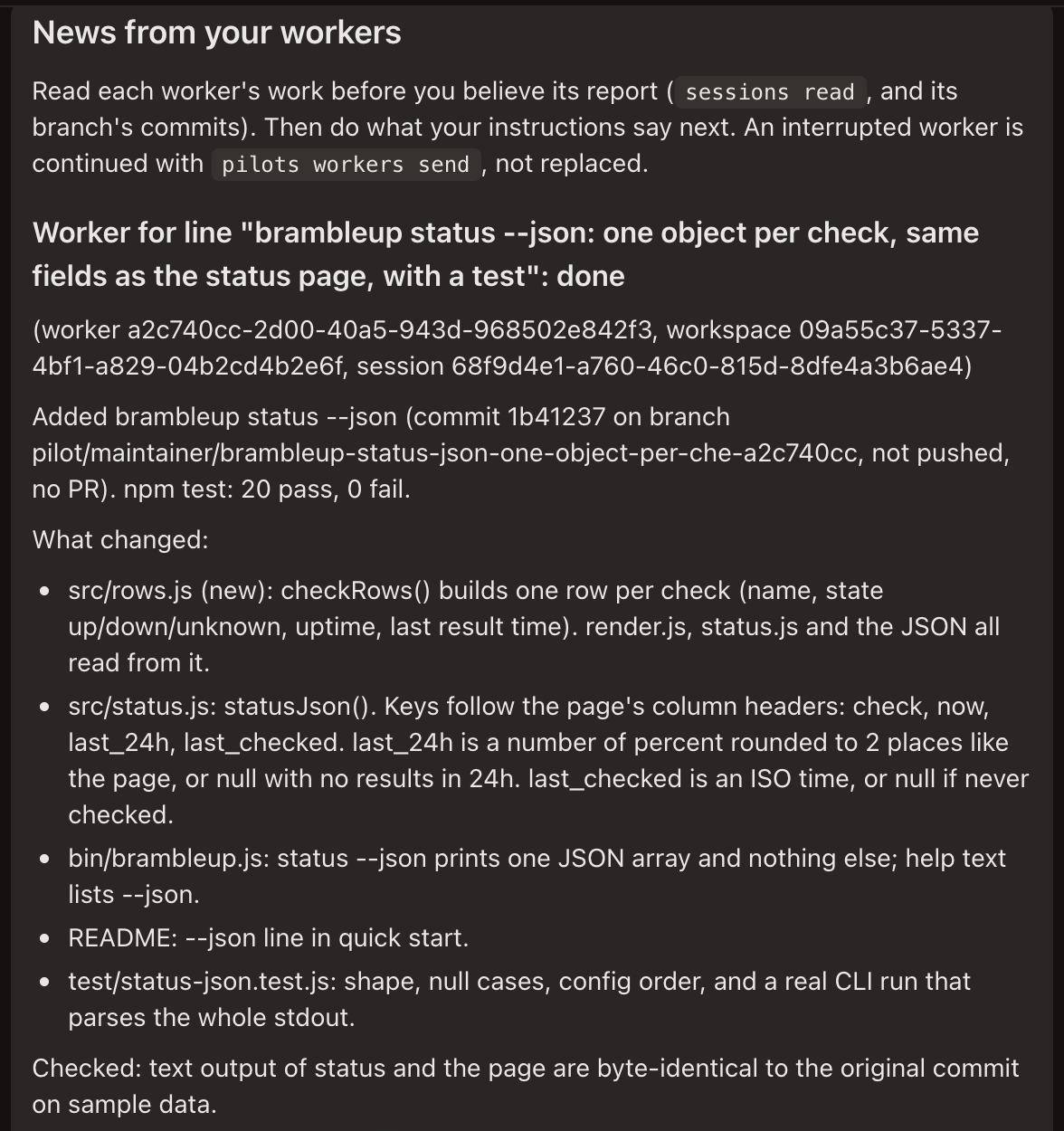
You do not have to check on workers. A worker's report wakes its Pilot by itself: the Pilot checks the work, updates the task and does what its instructions say next.
ParaPilots is a mod of Paradev: Paradev's open-source code, modified to add Pilots. It installs as its own app, with its own name in the Dock and its own settings. So it runs on the same Mac as your Paradev and leaves it exactly as it is. You can use both.
It is local first. Your Pilots and their workers run on your own Mac, with your own agent login, and no server of ours runs an agent. It sends no analytics and no error reports of its own. Features that need Paradev's cloud are off; the ones that work on your Mac are there.
We are grateful to the Paradev team for building their app in the open. ParaPilots is not made by them. If Pilots prove useful, we would be glad to see them in Paradev itself one day.
ParaPilots comes as a disk image for Macs with Apple silicon. Drag it to Applications and open it. It is signed and checked by Apple, so macOS asks only once, as for any app downloaded from the internet. It has its own icon in the Dock, so you can tell it from Paradev at a glance. Its About window carries Paradev's MIT License, as ParaPilots is a mod of Paradev.
It says ParaPilots everywhere you look: its own pixel wordmark on the sign-in screen, "Welcome to ParaPilots", its name in the menus and in the app's own sentences, in every language. Sentences about Paradev itself, such as its command line and its GitHub page, still name Paradev. The About window's last line names both: "© 2026 ParaPilots. Built on Paradev, © Superset Inc."
Sign in with your email and a code: no password. Type your email, press "Email me a code", and type the six-digit code we send, or open the link in the email on the same Mac. A code works once, for 10 minutes. The app accepts a code only for the email it asked for. A link it did not ask for is ignored, with a line saying so.
The app updates itself: it downloads a new version in the background and installs it when you restart.
Remote access, in its settings, is what lets the phone app reach your Mac. Settings, Mobile shows a QR code that opens this site's phone section, which says how to get the phone app. When a Pilot has something for you, the app also sends the notification to your phone, if you are signed in there with the same account.
macOS may ask you a few things on the first runs. When a Pilot or its agent first reads in Documents, Desktop, Downloads, iCloud Drive or an external volume, macOS asks whether ParaPilots may access files there. A project kept in one of those folders needs Allow. Until you answer, whatever reads there waits, so look for the dialog on your screen when a Pilot seems stuck. Pilots search only inside their project, so these questions come only for folders your projects really use. System Settings, Privacy & Security, Files and Folders changes your answer later.
Apple silicon only. It needs an account: ask for one on this site. It does not include Paradev's own pdev agent, which needs Paradev's cloud. It has no links to Paradev's changelog, release notes, theme marketplace or docs pages, and no leaderboard, not even in Settings' search. Its command line shows no pricing link. Its plugins give neither Paradev's docs as their website nor Paradev's own MCP server. Help, Documentation opens this features page instead. There is no support mailbox yet. Cloudflare, which carries our site and our relay, may get a report from the app when a connection to it fails.
ParaPilots is a private beta. Leave your email in the waitlist on the front page, under "Download for macOS", or press "Join the waitlist" at the top of any page. The page answers "Thanks. You get an email when you are approved."
When you are approved, your account is made and one plain welcome email brings you two links, each in its own paragraph: the download for the Mac app and a TestFlight link for the phone app. You sign in to both with a code sent to that email.
The Mac app downloads directly. The phone app comes through Apple's TestFlight, and its setup is quick: install TestFlight on your iPhone, open the link from the email, and sign in with the same email.
We use your email only to answer this request. It goes to our own server and nowhere else. The form answers the same whether or not an email is already on the list, so it never tells anyone who is. A request nobody answers is deleted after 90 days.
It takes an email and nothing else: no name, no address. When the form cannot send, it says so in plain words and keeps what you typed. There is no privacy page yet: the line under the field says what your email is used for.
Not built yet. Next is decided and comes first. Later is wanted and not scheduled. An idea is only that.